Most of us only think about our modem when the internet drops out mid-stream or a new phone won’t connect. If you have a Telstra Smart Modem at home, a few minutes learning how it works can save you a long wait on hold. As a Telstra partner store in Shepparton and Cobram, we set up and troubleshoot these modems every week.
Here is how to set up your Telstra Smart Modem, log in to its settings, and restart or reset it safely.
Key facts: Telstra Smart Modem 4
- Wi-Fi 7 on the 2.4GHz and 5GHz bands (no 6GHz band)
- Built-in 4G/5G backup on eligible plans, capped at 25Mbps download and 5Mbps upload
- Connects 250+ devices at once
- 1Gbps WAN port: fast enough for tiers like NBN 500, but can’t deliver NBN 2000 speeds
- Included with new Telstra NBN and 5G Home Internet plans; return it or pay a fee if you leave within 24 months
- Default login: http://mymodem or 192.168.0.1, username admin, password on the modem label
What makes the Telstra Smart Modem different?
The Telstra Smart Modem is a modem and Wi-Fi router in one, with a built-in mobile backup that most third-party modems lack. It comes with Telstra home internet plans.
If your NBN connection drops, eligible plans switch automatically to Telstra’s mobile network, so you stay online at backup speeds of up to 25/5Mbps. The Smart Modem 4 also runs a more proactive, AI-powered version of SmartFix, which spots and fixes common faults in the background.
Which Telstra Smart Modem do I have?
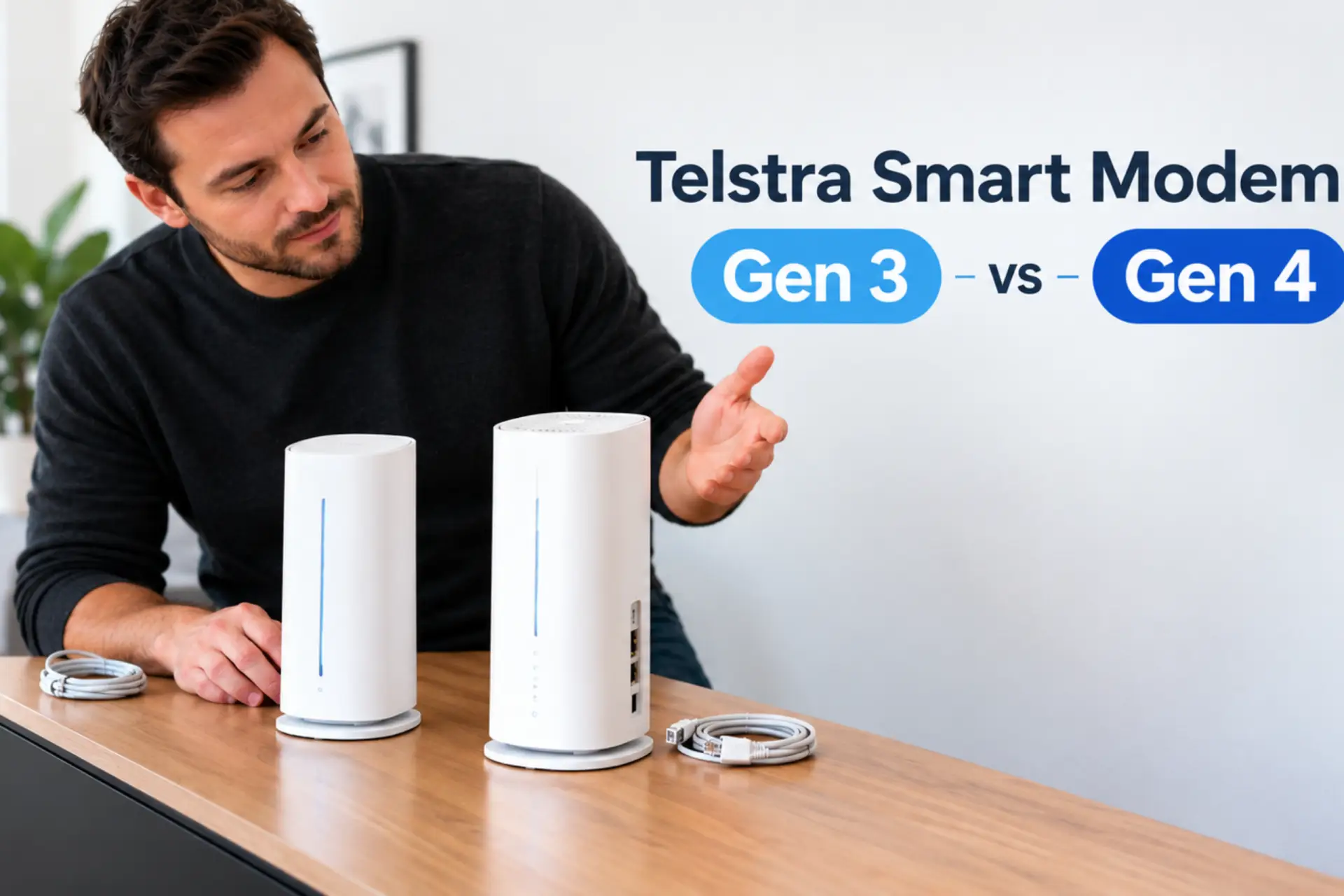
Check the label on the base of your modem: it names the model. Here is how the generations compare.
| Model | Wi-Fi standard | Mobile backup | Settings password (username: admin) | Still supplied? |
| Telstra Smart Modem 4 (Gen 4) | Wi-Fi 7 (2.4GHz + 5GHz) | 4G/5G, up to 25/5Mbps | Wi-Fi password on the base label | Yes, to new customers since August 2025 |
| Telstra Smart Modem Gen 3 | Wi-Fi 6 | 4G | Wi-Fi password on the base label | No |
| Telstra Smart Modem Gen 2 | Wi-Fi 5 | 4G | Telstra | No |
| Telstra Smart Modem 1.1 | Older Wi-Fi | 4G | Telstra | No |
The Smart Modem 4 also has tactile port markers you can feel, and pairs with the Telstra Smart Wi-Fi Booster 3 for mesh coverage.
How do I set up my Telstra Smart Modem?
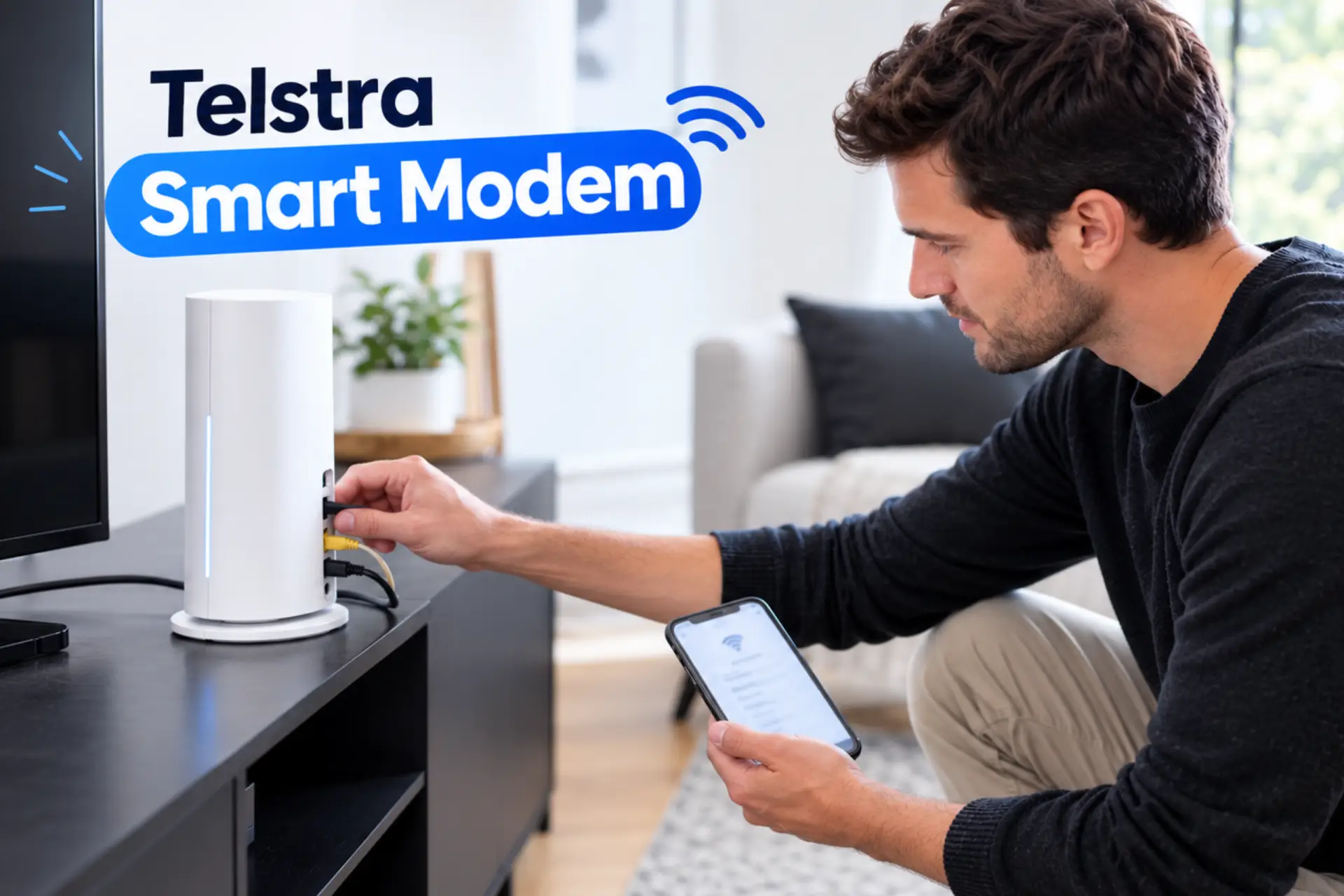
You can set up a Telstra Smart Modem yourself in minutes, with no technician needed. Follow these five steps.
- Connect the cable. For FTTP, HFC, FTTC and Fixed Wireless, run an Ethernet cable from the modem’s red WAN port to the UNI-D port on your NBN connection box. For FTTN and FTTB, follow the Quick Start Guide, as the ports vary by model.
- Power it on. Plug in the adaptor and switch it on at the wall.
- Let it update. The modem may download software on first start-up, so leave the power on.
- Check the lights. Allow a few minutes for the light to turn solid green. If it settles on another colour, see the lights table below.
- Connect your devices. Join the network using the name and password on the label, or follow the guided setup under Set up my modem in the My Telstra app.
Tip: Replacing an older Telstra modem? Give the new one the same Wi-Fi name and password as your old network, and your devices will reconnect automatically.
Not sure which NBN connection type your Shepparton or Cobram home has? Bring your address into either Roly’s Mobiles store and we’ll check it for you.
How do I log in to my Telstra modem settings?
Go to http://mymodem or 192.168.0.1 and log in with the username admin. The password depends on your model. The settings page is where you change Wi-Fi details, guest access and parental controls.
- Connect to the modem’s Wi-Fi, or plug in with an Ethernet cable.
- Open a browser and go to http://mymodem or 192.168.0.1.
- Enter the username admin.
- Enter the password: on Gen 4 and Gen 3, it’s the Wi-Fi password on the base label. On Gen 2 and 1.1, it’s Telstra.
If you’re on a Gen 2 or 1.1, change the admin password once you’re in, as the default is widely known.
Which Telstra modem settings are worth changing?
- Wi-Fi name and password: make them memorable for you and hard for others to guess.
- Guest Wi-Fi: keeps visitors off your main network.
- Band steering: merges both bands under one network name. Turn it off if an older printer or smart plug won’t connect, as many only use 2.4GHz.
- Bridge mode: switches off routing, for people who want to run their own mesh system instead of the Telstra modem’s Wi-Fi.
For bigger homes, the Smart Modem 4 pairs with the Telstra Smart Wi-Fi Booster 3 to extend coverage. Note that the booster runs at Wi-Fi 6 speeds, not Wi-Fi 7.
What do the Telstra Smart Modem lights mean?
The lights on a Telstra Smart Modem show the status of its connection. The meaning of each light depends on your modem model and internet connection type.
What do the lights on the Telstra Smart Modem 4 mean?
For the standard Telstra Smart Modem 4 connected to NBN, Opticomm or satellite internet, the front light indicates the following:
| Front light | What it means | What to do |
| White | The modem is starting up or connecting | Wait for the connection process to finish |
| Green | Connected to the fixed network | No action needed if your internet is working |
| Blue | Using mobile backup on an eligible plan | Check for outages and ensure cables are connected securely |
| Red | No connection | Check cables and restart the modem |
| Flashing blue and green | Firmware update in progress | Allow the update to finish |
These meanings apply to the standard Smart Modem 4 on the connection types specified above. The Smart Modem 4–5G uses different normal connection-light behaviour: its front light is green when connected to the mobile network.
What do the lights on older Telstra Smart Modems mean?
On the Telstra Smart Modem Gen 3, the front light generally indicates the following:
- Green: Connected to the fixed network.
- Blue: Connected to 4G backup or the 4G mobile network.
- Red: No connection.
- Orange: Trying to connect.
- White: Booting up.
- No light: Modem is offline.
Older Telstra Smart Modem and Frontier Gateway models may use magenta to indicate a 4G backup connection. The lights on the back of some models indicate mobile signal strength.
If your modem uses a different light pattern, check the instructions for your exact model.
What should I do if my Telstra modem has a red or blue light?
If your modem shows a red light, check that the cables are connected securely and restart the modem. If the light stays red, consult the troubleshooting instructions for your model.
If a standard Smart Modem 4 connected to NBN shows a blue light, it has switched to mobile backup. Check for a service outage and verify the cable connections. If the modem remains on backup for several hours, use the My Telstra app to test and troubleshoot your connection.
For the full model-specific instructions, see Telstra’s official modem lights guide.
Should I restart or reset my Telstra modem?
Always try a restart first. A restart clears temporary glitches and keeps your settings. A factory reset wipes everything, including your custom Wi-Fi name and password.
How do I restart my Telstra modem?
Turn the power off at the wall, wait 30 seconds, then switch it back on. Once the light turns green, you’re back online with all your settings intact. You can also run a connection check in the My Telstra app.
How do I factory reset my Telstra Smart Modem?
- Find the small hole marked Reset on the back of the modem.
- Press and hold the button inside with a paperclip for about 10 seconds.
- Release it once the lights start flashing.
- Allow around five minutes for the light to turn green, then reconnect using the details on the label.
On Gen 2 and Gen 3, you can also reset from the settings page under Advanced > Management > System Reset.
Can I use a Telstra Smart Modem with another provider?
Often, yes. Many providers accept a Telstra Smart Modem as a bring-your-own device, sometimes after a factory reset.
Keep in mind that Telstra’s mobile backup and home phone features may not move across with you. If you leave Telstra within the applicable period, return requirements or a non-return fee may apply to your Smart Modem 4. Check your Telstra agreement and the current return policy to confirm the conditions and any applicable fee.
Is it worth upgrading to the Telstra Smart Modem 4?
Upgrade if you’re on a Gen 2, have a bigger home, or pay for a fast NBN plan. You’ll notice a real difference from Wi-Fi 7 and 5G backup.
If your Gen 3 runs smoothly, the gain is smaller, and a Smart Wi-Fi Booster may be the cheaper fix. Also note the Smart Modem 4’s 1Gbps WAN port can’t deliver NBN 2000 speeds.
Existing Telstra customers may be eligible to upgrade to the Telstra Smart Modem 4. Pricing and eligibility can change, so check the latest offer with Telstra or Roly’s Mobiles before upgrading.
Get the right setup with local experts
Unsure which modem or plan suits you, or want to compare Telstra routers and boosters for a larger home? Our team can help.
Roly’s Mobiles is a Telstra partner store in Shepparton and Cobram, VIC. We can set you up with a Telstra NBN or 5G home internet plan with a Telstra Smart Modem included, and help with setup and troubleshooting.
Drop into either store or contact Roly’s Mobiles today to get connected.