
Table of Contents
If you’ve ever asked, “Why is my iPad not charging?” or noticed the dreaded “iPad charging problem” where your iPad flickers between charging and not charging (or even refuses to charge altogether), you’re not alone. Many users of the Apple iPad face charging hiccups—ranging from slow charging, no charge at all, to the device plugged in, yet the battery percentage barely budges.
In this blog, we’ll walk you through 10 quick fixes to resolve iPad charging issues—so you can stop asking Why is my iPad not charging? and get back to using your device as intended.
Here are the fixes:
- Check your cable & adapter
- Try a different power source
- Inspect and clean the charging port
- Force-restart or reboot the iPad
- Update iPadOS
- Check battery health or internal damage
- Ensure correct wattage/power delivery
- Avoid extreme temperatures
- Remove case/cover or restrict background usage while charging.
- When all else fails – seek professional repair.
Let’s dive into each of these in more detail.
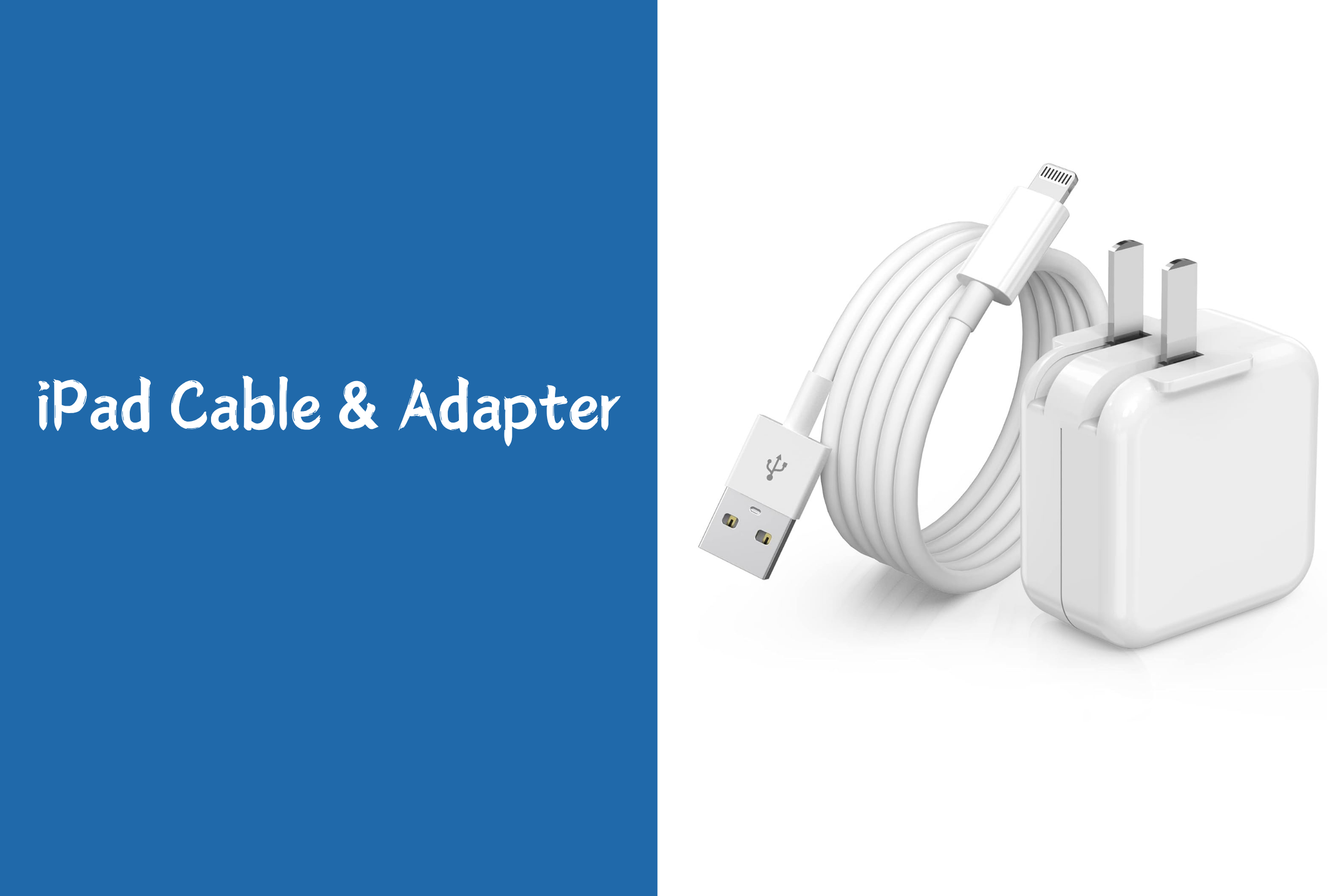
1. Check Your Cable & Adapter
One of the most common reasons behind an iPad not charging is a faulty cable or adapter. If your iPad won’t charge, you should use a different power adapter or a different charging cable.
What to do:
- Inspect your cable for fraying, bent connectors, or damaged insulation.
- Try another cable that you know works (preferably an Apple-certified one).
- Swap the adapter (power brick) and plug into a known good socket.
- Avoid using low-power USB ports (on laptops, etc), which may not supply sufficient current.
Why this matters:
Your iPad requires a certain minimum wattage/current to charge efficiently. If the cable or adapter is subpar, it may display the “plugged in but not charging” message or charge at a painfully slow rate
2. Try a Different Power Source
Even if your cable and adapter look fine, the power source itself might be the culprit. Some outlets, USB hubs, or even car chargers don’t supply the required current.
Quick checks:
- Plug the adapter into a different wall socket.
- Try charging through a wall plug rather than a laptop’s USB port.
- If you have a known good charger or power bank rated for iPad use (20W+ for newer models), test with that.
If the iPad begins to charge correctly, you’ve isolated the problem to the power source rather than the device itself.
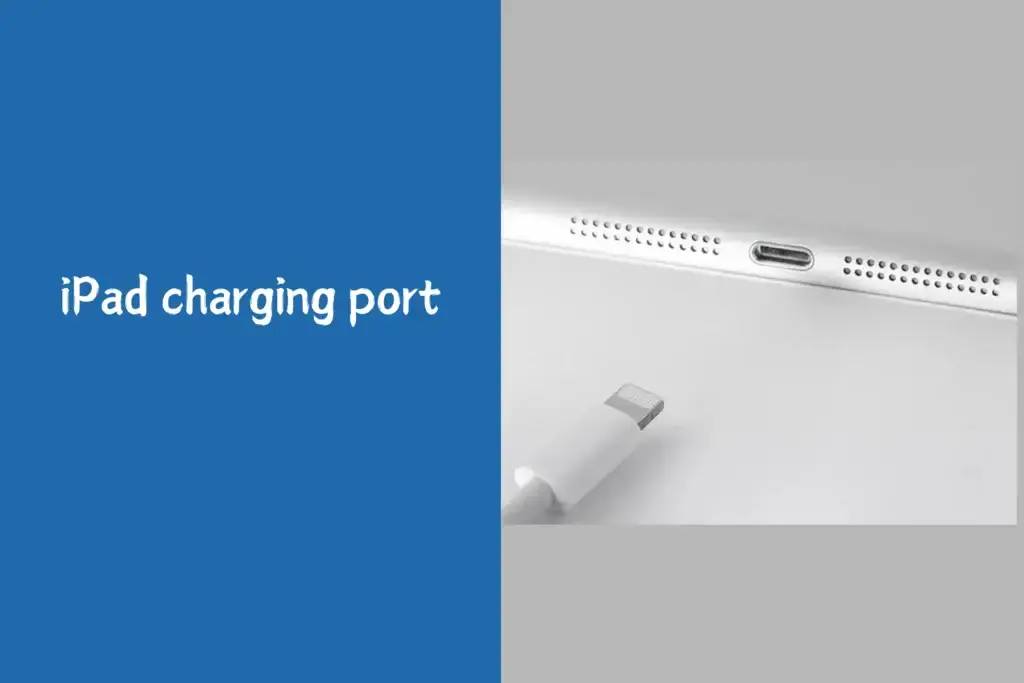
3. Inspect & Clean the Charging Port
A dirty or obstructed port is a surprisingly common cause of iPad charging problems. Dust or lint can prevent proper contact between your cable and device.
How to safely clean it:
If you’re unsure how to clean iPad charging port properly, here’s what to do:
- Power off your iPad.
- Use a flashlight to inspect the port for dust or debris.
- With a soft, non-metallic tool (like a wooden toothpick or soft brush), gently remove any blockage.
- Avoid metal objects to prevent internal damage.
After cleaning, reconnect your cable and check if charging improves.
Why this fix often works:
A good physical connection between the cable and the iPad port is essential for charging. If that connection is poor due to debris or grime, the device may not recognise the charging cable → shows “iPad not charging” or slow charging.
4. Force-Restart or Reboot the iPad
Sometimes the issue is software-related: your iPad thinks it’s charging (or not), but the underlying system is confused. A restart or force restart often clears such glitches.
How to do it:
- For iPads without a Home button: Press and quickly release Volume Up → Volume Down → then press and hold the Top (Power) button until you see the Apple logo.
- For iPads with Home button: Hold Home + Top (or Side) button until Apple logo appears.
Tip: After a restart, plug in your iPad again and observe if the charging behaviour has improved.

5. Update iPadOS Software
If your device is running outdated software, it may cause charging issues or misrecognise the state of battery/charging. Many repair guides list “update software” among the essential steps.
What you should do:
- Go to Settings → General → Software Update.
- If an update is available, install it (after backing up your data).
- Then plug in and see if the iPad now charges normally.
Keeping your iPad’s software current helps avoid obscure bugs that might interfere with charging or battery calibration.
6. Check Battery Health or Hardware Issues
If none of the above solutions work, your iPad’s battery or internal hardware could be to blame.
What to keep in mind:
- Older iPads may have degraded batteries that charge slowly or not at all.
- If your iPad overheats or doesn’t gain charge, internal damage may be involved
In such cases, consider an iPad battery replacement. A professional technician can assess whether your battery needs replacing or if other components (like the charging port or logic board) are at fault.
7. Ensure Correct Wattage / Power Delivery
Using a charger with insufficient output is a frequent cause of iPad charging issues, especially with newer iPads. Most models of iPad require a Power Adapter rated at 12W (2.4A @5 V) or greater… Some third-party adapters may not support USB PD.
What to check:
- Use a charger rated at 20W (or above) for newer iPad models (USB-C PD supported).
- Avoid older phone chargers (5W) for iPads—they’ll charge very slowly or may not charge.
- Look for MFi-certified cables (Made For iPad/iPhone) for best compatibility.
8. Avoid Extreme Temperatures
Your iPad’s battery and charging circuit are sensitive to temperature. If the device is too hot or too cold, charging can be inhibited. Make sure your iPad isn’t too hot or too cold.
Best practices:
- Avoid charging your iPad in direct sunlight, in a hot car, or under thick, heavy cases that trap heat.
- If your iPad displays a “temperature warning” screen, unplug it and let it cool down before charging.
- For very cold environments, allow the iPad to warm to normal room temperature before plugging in.
9. Remove the Case or Stop Using it While Charging
Sometimes a thick case or heavy usage while charging (e.g., gaming, streaming) causes the device to draw too much power, or generate heat — both may lead to iPad charging problem.
What you can try:
- Remove the iPad case during charging to allow better heat dissipation.
- Turn off the iPad or switch to Airplane mode while charging for faster, cleaner charging.
- Avoid heavy apps while charging — let the iPad rest.
This helps ensure most of the charging current is used to recharge the battery rather than powering running apps.
10. When All Else Fails — Seek Professional Repair
If you’ve gone through all the above steps and your iPad still shows “iPad not charging” or iPad charging issues persist, it may be time for a professional diagnostic. Hardware issues such as a faulty logic board, damaged port, or severely degraded battery can require expert intervention.
At Roly’s Mobiles, we provide certified repair and diagnostics for iPads. We’ll help you figure out if the problem is a simple fix (cable/adapter) or needs a deeper repair (port replacement, battery swap).
Tip: Back up your iPad data before any major repair so you don’t lose your files, photos, or settings, especially if a replacement or hardware service is needed.
Wrapping Up
Dealing with an iPad that won’t charge can be frustrating—but most “why is my iPad not charging?” issues are easily fixable with the quick solutions we’ve shared above. From cleaning the port to performing an iPad battery replacement, these practical steps can help restore your device’s charging performance.
If you’ve tried everything and your iPad still refuses to charge, it’s best to get it checked by a professional. At Roly’s Mobiles, we specialise in reliable mobile phone services and iPad repairs across Australia. Our certified technicians can diagnose and fix issues ranging from faulty charging ports to degraded batteries, ensuring your device works like new again.